
The Checkout tab controls what happens when a customer goes to the cart and checkout. You can choose which currencies can be used to pay, and which payment methods are shown for each currency.
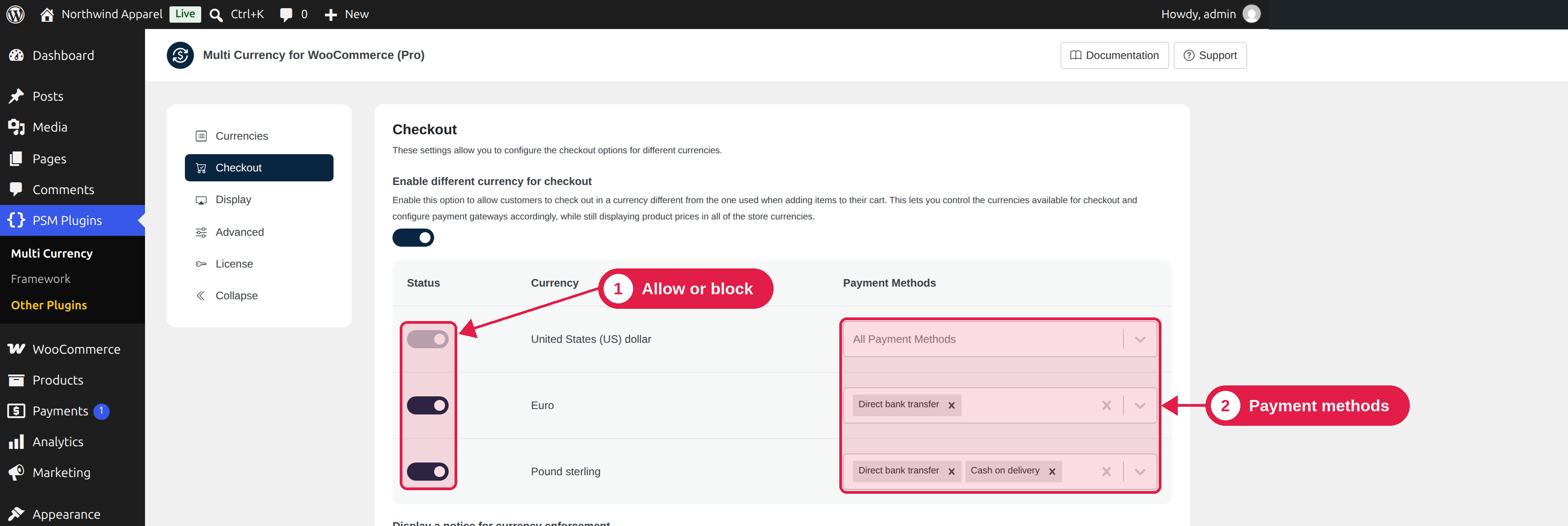
Enable different currency for checkout
This is the main switch of the tab. When you turn it on, you decide which currencies are allowed at checkout. A customer can still browse your shop in any currency, but pays only in a currency you allow.
When it is on, the tab shows a table with one row for each currency:
Not every payment method accepts every currency. For example, you can allow a local bank payment only for the currency of that country. Customers then see only the methods that work for them.
The list shows the payment methods that are active in WooCommerce. If you turn off a method in WooCommerce, the plugin removes it from the currency automatically.
What the customer sees
The cart and checkout pages use the checkout currency. If it is the same as the currency the customer chose, nothing changes. If it is different, prices on those pages are converted to the checkout currency, and a notice can be shown (see below).
Currency notice
When the checkout currency is different from the currency the customer selected, you can show a notice on the checkout page so the customer is not surprised.
- Turn on Display a notice for currency enforcement.
- Edit the text in the box Enter the notice to display on the checkout page.
You can use these placeholders in the text:
The default notice is:
Paying in <strong>%currency-selected%</strong> is not supported in your location. So your payment will be recorded in <strong>%checkout-currency%</strong>.
The notice is shown only when the two currencies are different. To translate it, see Compatibility.
Pro options
In Pro, the Checkout tab has more options. See Force checkout currency by country.
Save or reset
Click Submit to save. Click Reset to go back to the defaults: different checkout currency on, all currencies allowed, all payment methods allowed, and the default notice.