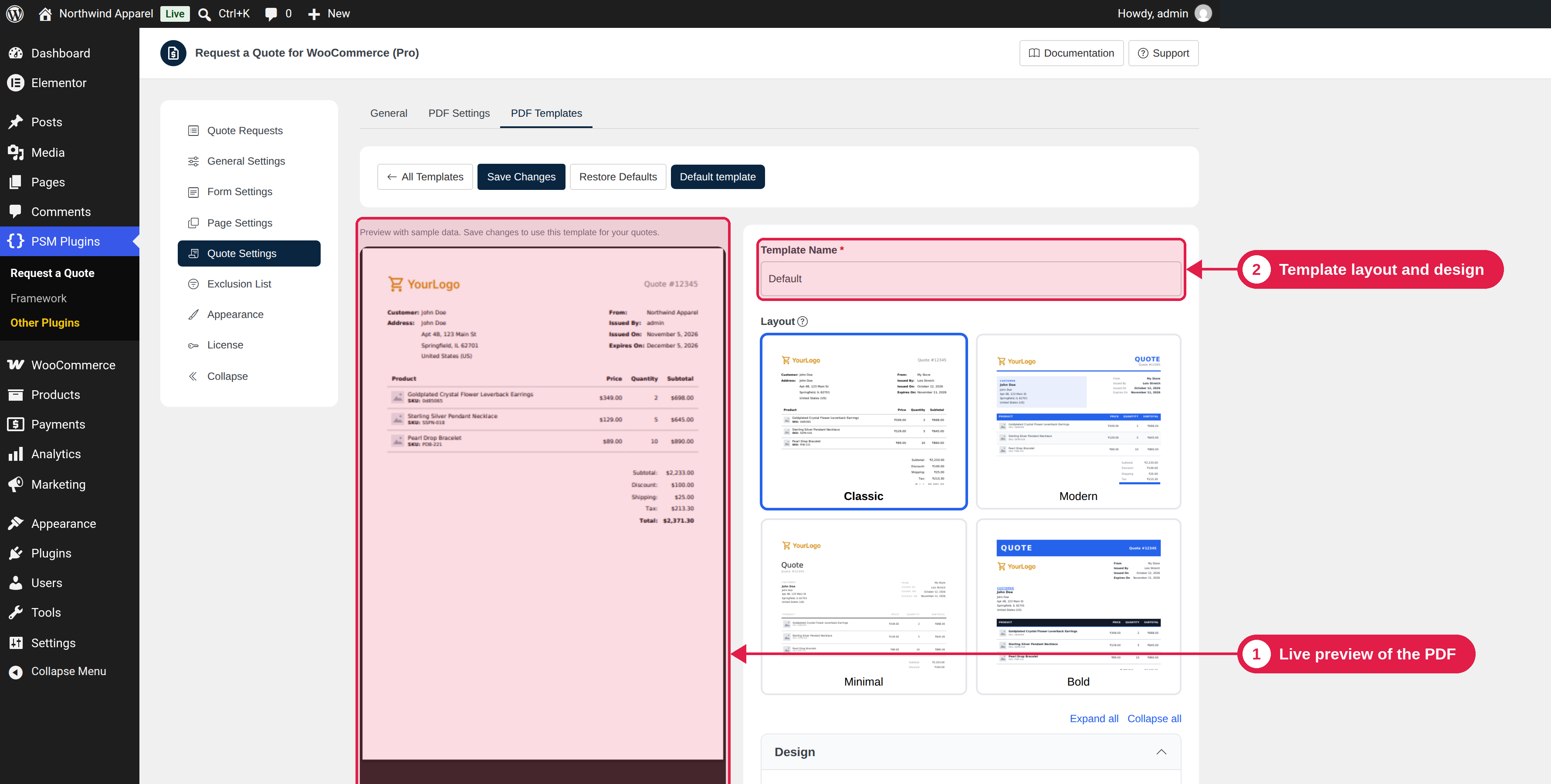
PDF templates control how your quote PDF looks. You can use your logo, your colours and your own texts. You can make more than one template and use a different one for each quote.
Plugin Pro only
Where PSM Plugins → Request a Quote → Quote Settings → PDF Templates
Manage templates
Add New Template / Create Template: make a new template.
Edit: change a template.
Duplicate: copy a template, to use it as a start for another.
Set as Default: the default template is used for every quote. For one quote, you can choose another template in its Quote Options.
Design
Setting
What it does
Layout
Choose a design: Classic, Modern, Minimal or Bold.
Accent Color
The main colour. Use a hex colour such as #2563eb.
Font
The font used in the PDF.
Paper Size and Orientation
Paper size (for example A4 or Letter), and Portrait or Landscape.
Logo and Logo Height (px)
Your company logo, from 10 to 150 pixels high.
RTL
Turns on the right-to-left layout for languages such as Arabic and Hebrew.
Labels and content
Setting
What it does
Quote ID Prefix
Text before the quote number. Default: Quote #.
Customer and Address labels
The titles of the customer and address blocks.
From / Issued By
Shows your store name and the name of the person who sent the quote. You can turn each on or off and change the label.
Issue date and Expiry date labels
The titles of the two dates.
Product Thumbnail and Product SKU
Show or hide the product image and SKU.
Price Column and Quantity Column
Show or hide the unit price and the quantity.
Hide total price
Hides the total price in the quote.
Show original price
On a discounted quote, shows the old price crossed out, followed by the new price.
Store Address
Shows your store address from the WooCommerce settings.
Customer Email & Phone
Shows the customer's email address and phone number.
Shipping Address
Shows the customer's shipping address when it is available.
Signature Line
Adds signature and date lines at the end of the quote.
Terms & Conditions
A title and text shown after the totals. Leave the text empty to hide the section.
Custom Fields
Choose answers from the quote request form to show in the PDF, in the order you choose. Empty answers are not shown. File uploads, acceptance checkboxes and addresses cannot be added.
Footer Text
Text at the bottom of the PDF. You can use simple HTML such as bold and links.
Texts can use these placeholders where the setting allows: {quote_id}, {quote_number}, {customer_name}, {issue_date}, {expiry_date} and {store_name}.
Preview and save
The preview uses sample data. Change a setting, check the preview, and click Save Changes to use the template for your quotes. If the preview fails, try again, or check the error message under the preview.