
This page shows what your customer sees and can do when they receive a quote.
Plugin Free and Pro
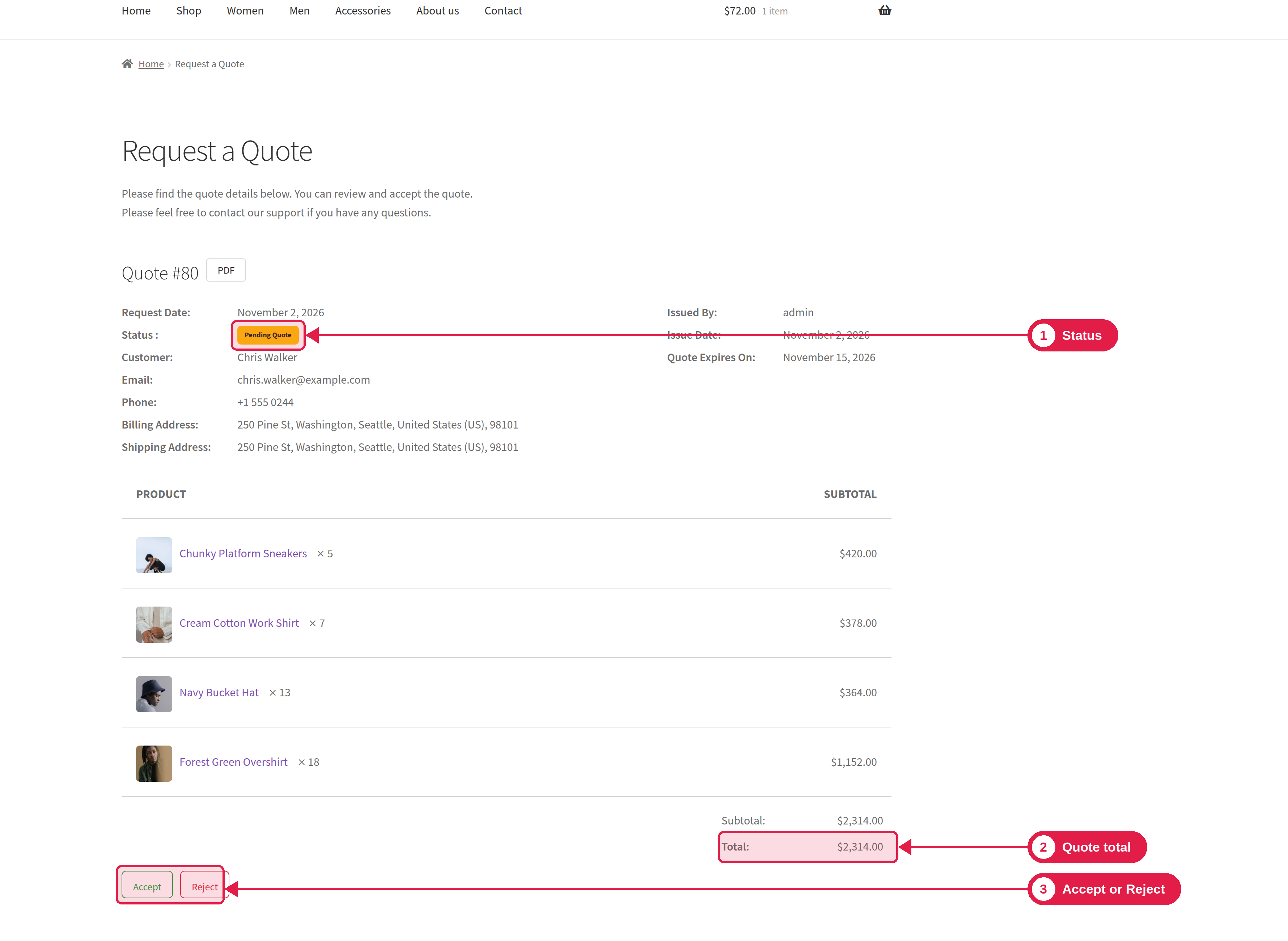
Open the quote
Customers open a quote in two ways:
- With the link in the quote email. No login is needed.
- In My Account → Quotes. See My Account quotes.
The quote page shows the status, a message for that status, the request date, the issue and expiry dates, the customer’s details, the products, and the totals (subtotal, shipping, discount and total). It also shows your text before and after the product list, and any attachments (Pro).
Accept a quote
- The customer clicks Accept. This button shows only for a Pending Quote that has not expired.
- The order status changes to Pending payment.
- You get the Accept Quote email.
- The customer goes to the WooCommerce payment page for the order and pays with your payment methods. See Paying for a quote.
Reject a quote
- The customer clicks Reject. It opens a confirmation page.
- The page asks “Are you absolutely sure you want to reject this quote?” and can ask for a reason.
- The customer clicks Yes, Reject Quote (or No, View Quote to go back).
- The status changes to Rejected Quote, the reason is saved in an order note, and you get the Reject Quote email.
You can change the texts, and choose if the reason is disabled, optional or required. See Button styling.
Expired and rejected quotes
For an expired or rejected quote, the Accept and Reject buttons are not shown. With Pro, an Ask New Quote button is shown instead. See Ask for a new quote.
Print or save as PDF
The quote page has a Print / Save as PDF button. See Print or save a quote as PDF.