
This section helps you set up and control how different currencies work in your WooCommerce store.
You can:
Add the currencies you want to use in your store
Choose how many decimal places to show (like 100.00 or 100)
Add the currency rate compared to your store’s main currency
Choose how to update the currency rate (manually or automatically)
Decide how prices should look (before or after the product price)
These settings help your store show prices correctly for customers in different countries.
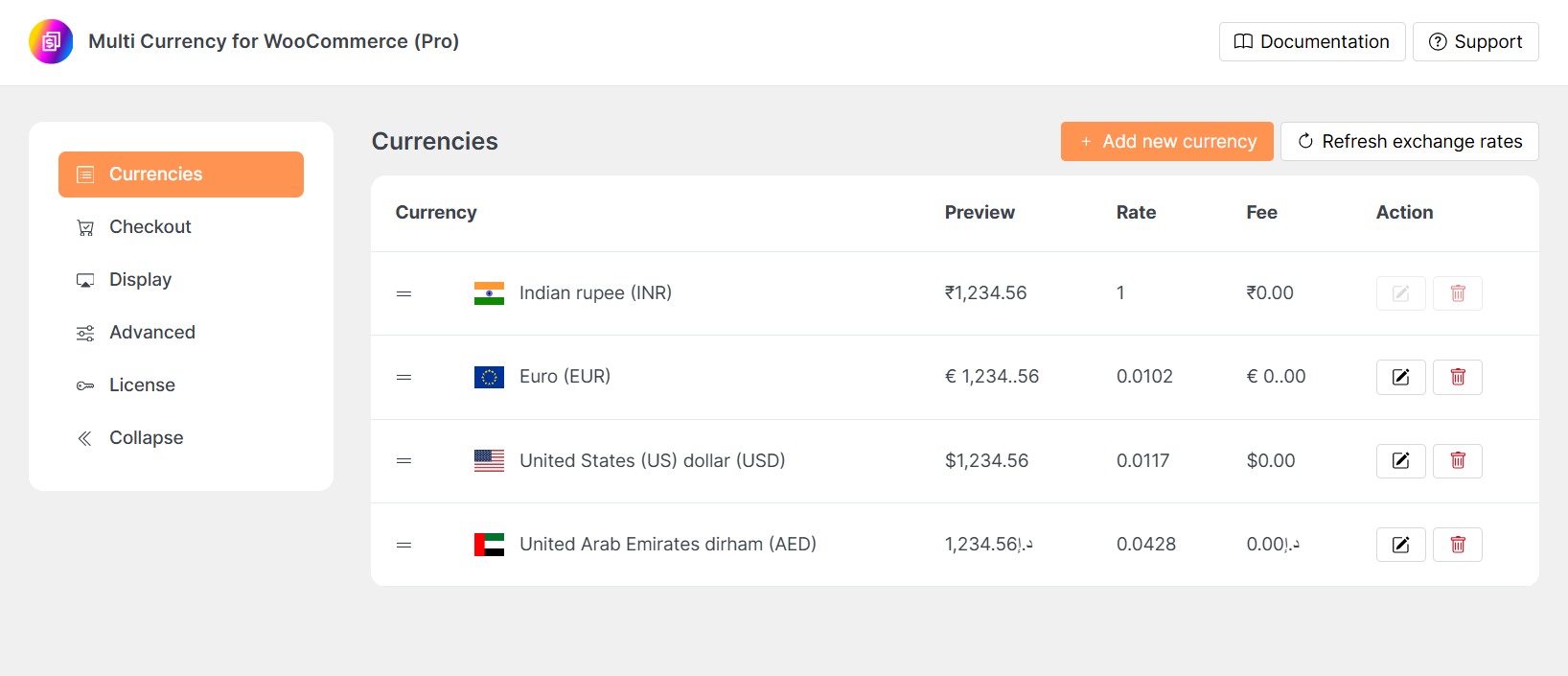
Currency Manager Features and Options
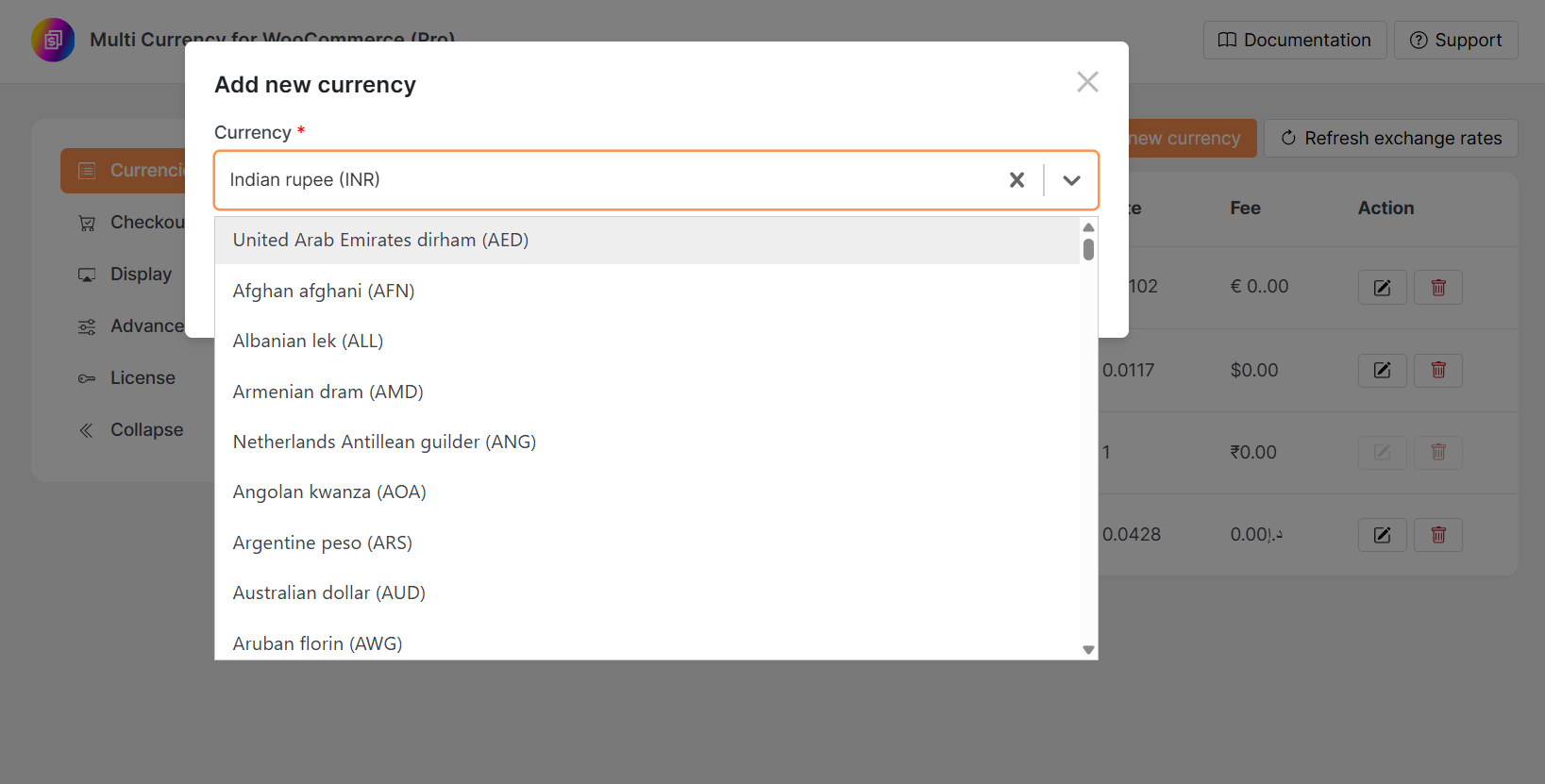
Add New Currency
Click on Add New Currency button and select the currency you want to add from the list. The selected currency will appear in the currency list.Refresh Exchange Rates
Click on the Refresh Exchange Rate Button to update all your currency exchange rates using your chosen rate provider. This keeps your prices accurate.
Currency Table Columns Explained
Currency
Shows the list of added currencies. You can drag and drop to change the order. This order will also show on your website.Preview
Displays how the currency format will look to your customers using a sample amount like 1,234.56.You can also adjust:
Thousand Separator – Choose how to separate big numbers (like a comma or space).
Decimal Separator – Choose what symbol to show for decimal points (like a dot or comma).
Number of Decimals – Set how many digits appear after the decimal (e.g., 2 for 100.00).
Symbol Position – Decide whether the currency symbol comes before or after the number, and if it has a space.
Rate
It will show the current exchange rate against your default currency.Fee
Add an extra amount to cover currency conversion charges or payment gateway fees.
Action: Extra Controls for Each Currency
Edit Currency
Click on edit icon to open a side panel where you can change advanced settings for that currency.
You can adjust things like:How the currency looks (formatting)
How the prices are rounded
Delete Currency
Click on trash to remove the currency from your list.