This section lets you configure advanced options for updating exchange rates and automatically detecting a customer’s currency based on their location.
1. Currency Exchange Rate APIs (Pro)
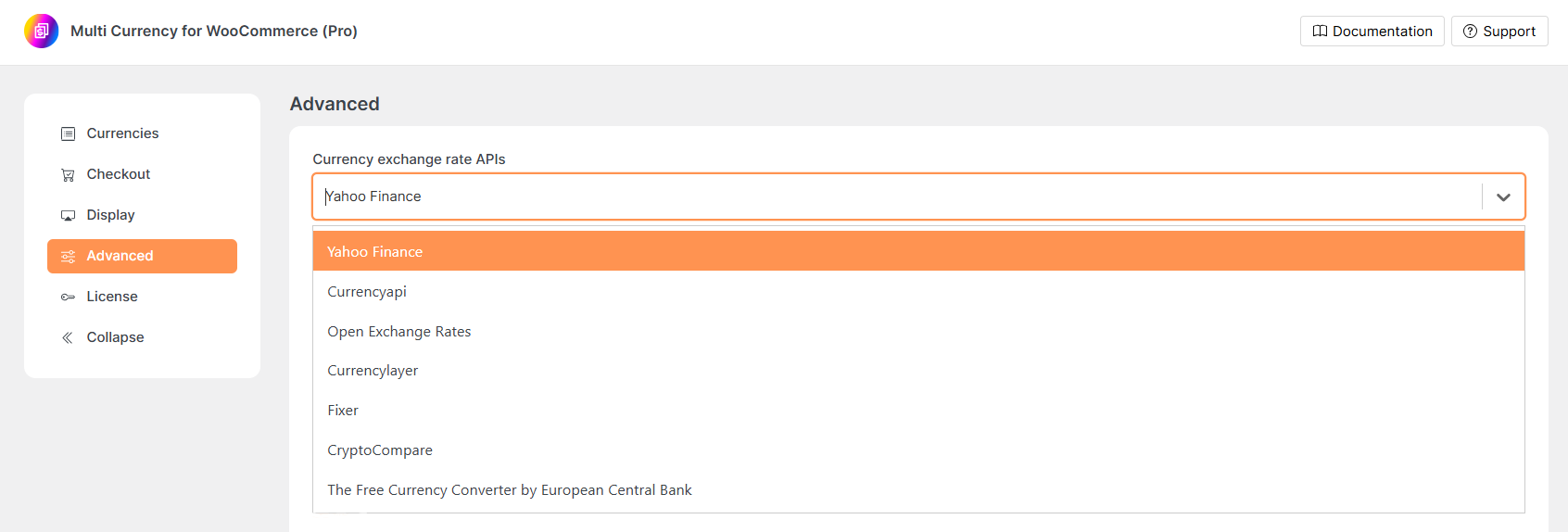
Choose an external API service to fetch and update currency exchange rates.
- Selecting an API: Choose the API you want to use. Yahoo Finance is available in the free version. Other APIs available in the Pro version.
- API Key Input: If the selected API requires an API key, a field will appear to enter it.
- Info Link: Click the “click here” link next to the dropdown for detailed information about supported currencies and usage limits for the selected API.
2. Auto-Update Exchange Rates (Pro)
Automatically update exchange rates at regular intervals using the selected API.
Toggle:
- Enabled: Automatically fetches the latest rates based on your set interval.
- Disabled: You’ll need to update rates manually.
Update Interval:
Enter a number to define how often updates should occur. Use the Time Unit dropdown to choose the unit (e.g., Hours, Days).

3. Auto-Detect Currency by Country (Pro)
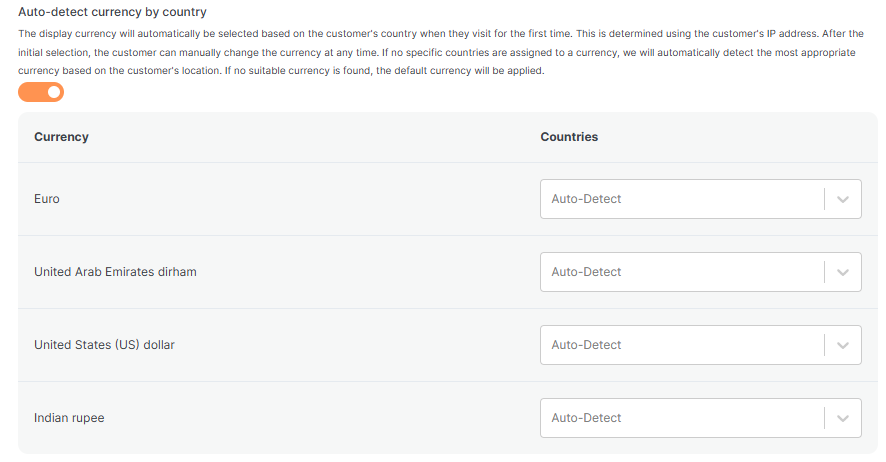
Automatically display the correct currency for a visitor based on their country (determined by IP address).
Toggle:
- Enabled: The visitor’s currency is auto-selected based on their location.
- Disabled: Customers will see the default currency until they manually change it.
How it Works:
- The currency is auto-selected on the visitor’s first visit based on their IP.
- Users can still manually switch currencies afterward.
- If no countries are assigned to a currency, the system will automatically choose the most appropriate one.
- If a match isn’t found, the store’s default currency will be used.
4. Use cache plugin
Enable this if you are using a caching plugin and the currency does not remain after being switched by customers in the frontend.
5. Currency and Country Mapping
Manually assign specific countries to each currency for more precise control.
- Currency Column: Lists the currencies you’ve added (e.g., USD, EUR, INR).
- Countries Column: Click the “Auto-Detect” dropdown for any currency to:
- Keep it as Auto-Detect: The system will auto-match this currency to countries where appropriate.
- Select specific countries: The selected currency will be applied to visitors from those countries.
- If no country is selected, the system will rely on general detection logic.
6. Geo API
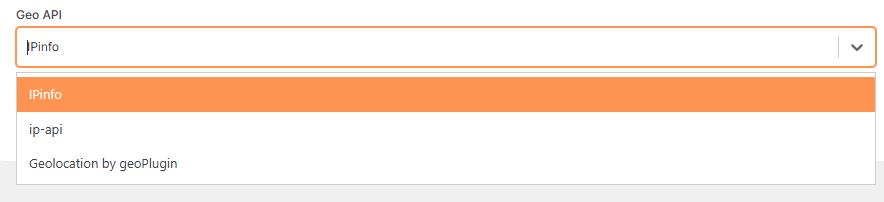
Choose which geolocation service will be used to detect a visitor’s country via their IP address.
Dropdown Selector: Click to view available Geo API services (e.g., IPinfo, ip-api, geoPlugin).
Select the desired service that best meets your accuracy and usage needs.