Page Settings let you control how the Request a Quote page looks and behaves for customers.
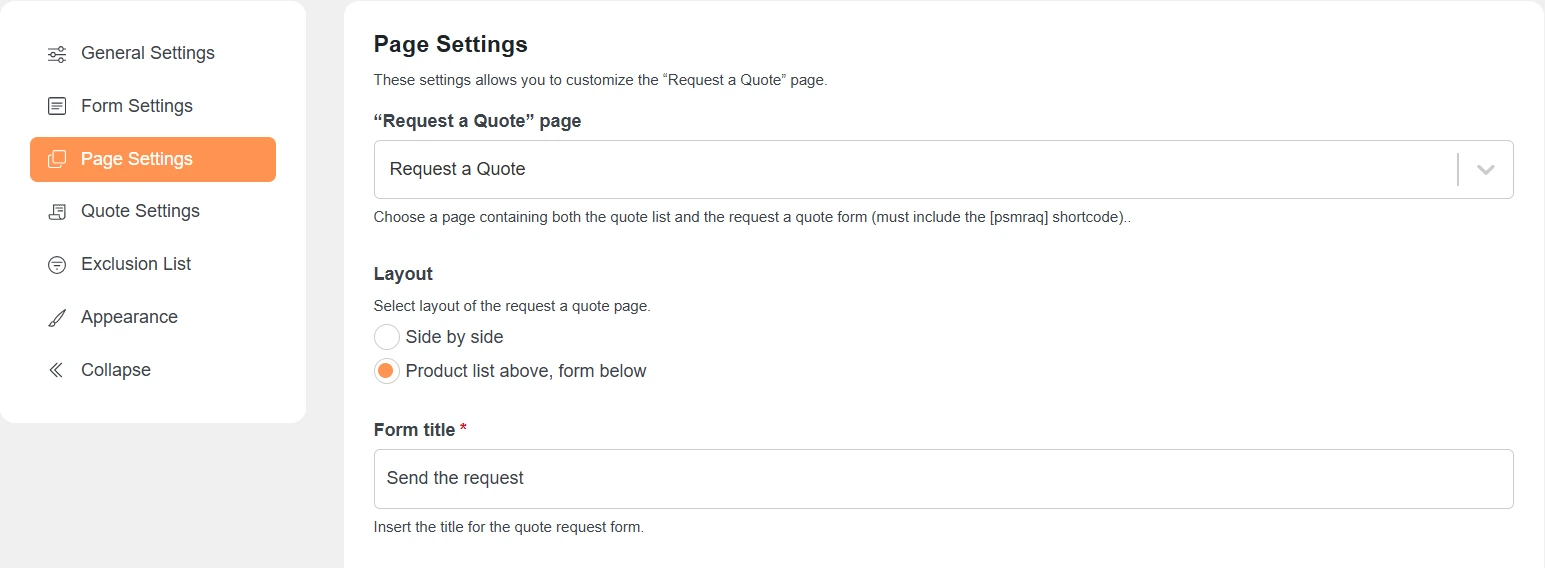
Select the page where the quote form and quote list will appear.The selected page must contain the [psmraq] shortcode.
[psmraq]
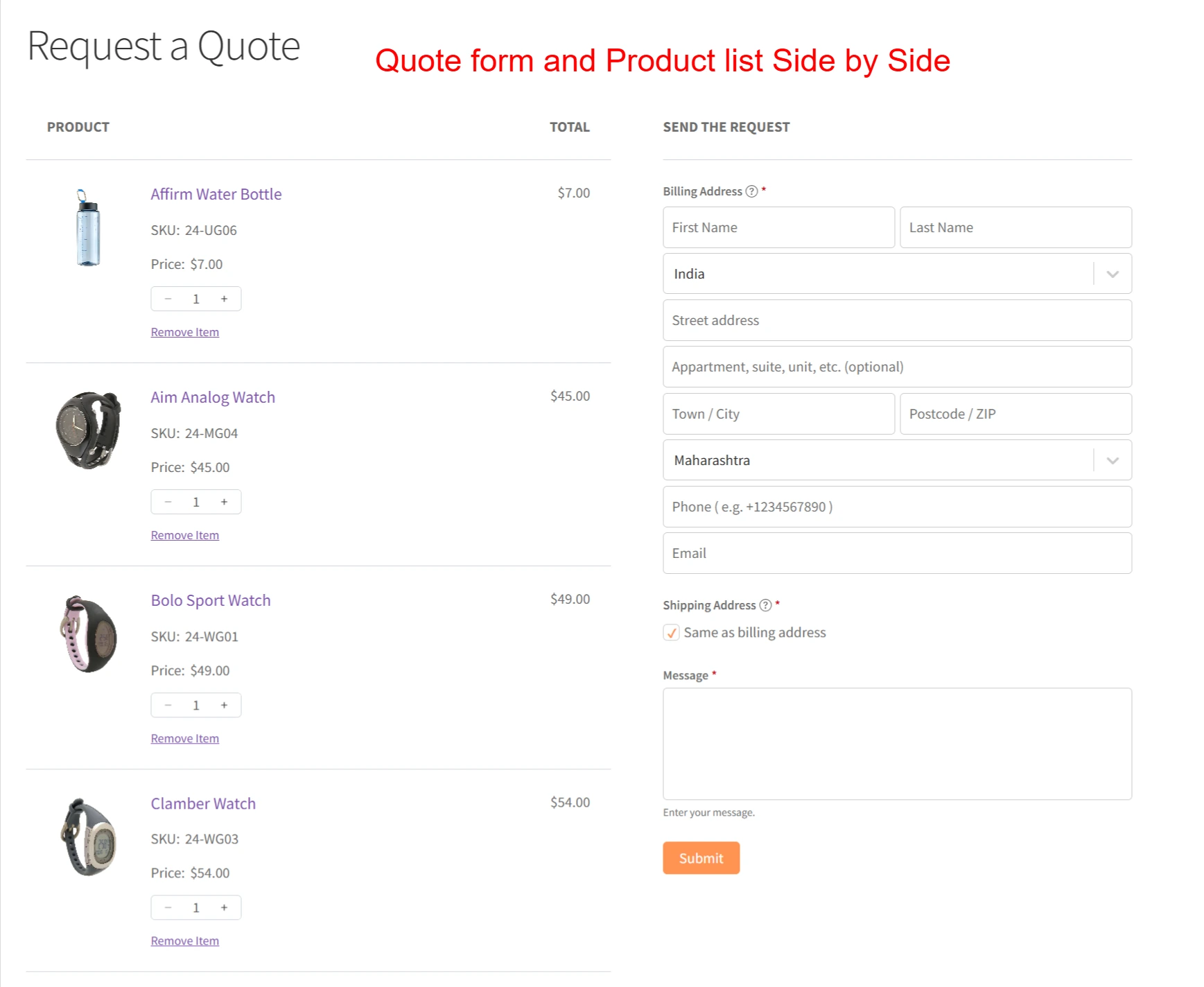
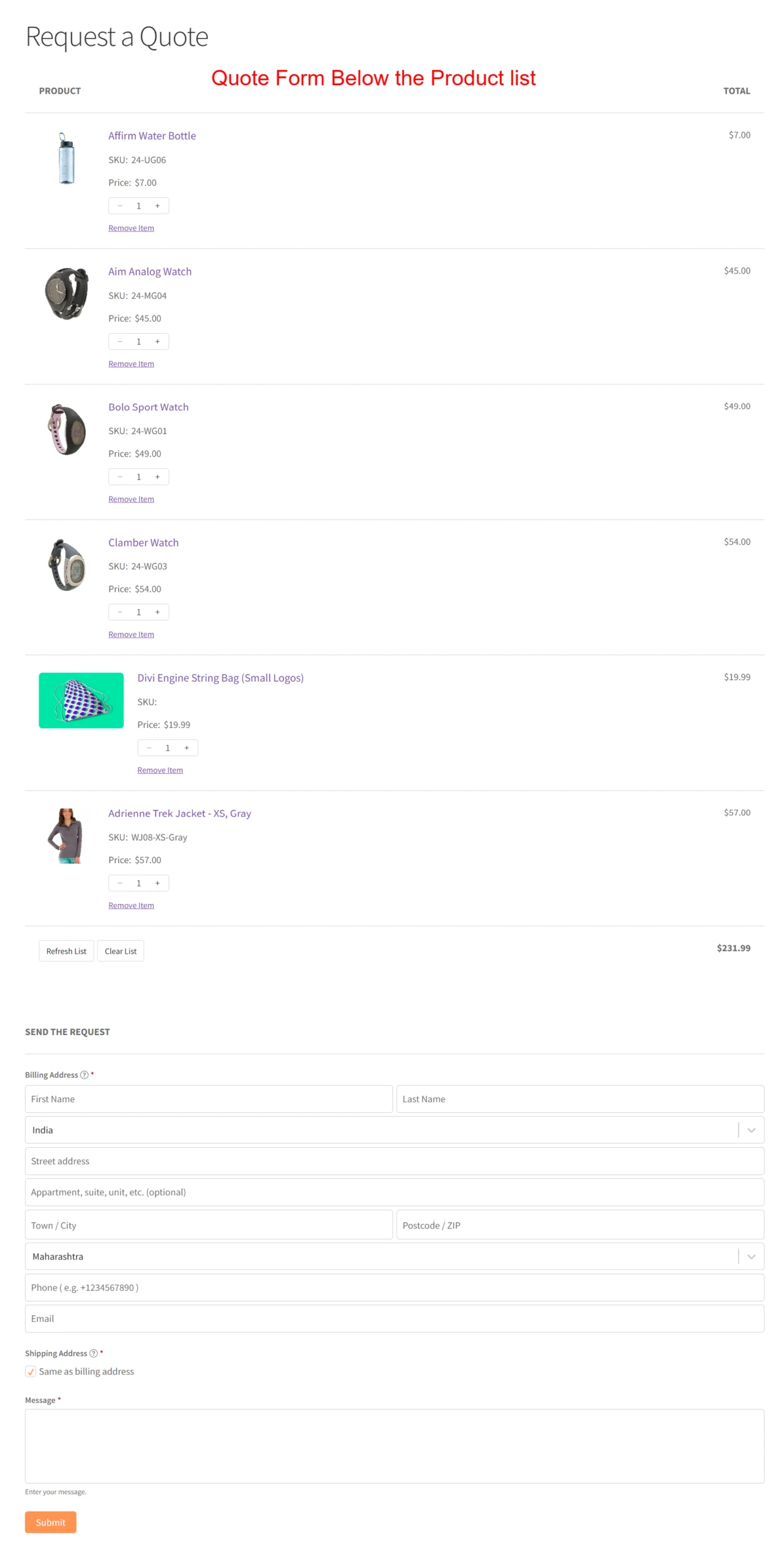
Choose how the quote list and form are displayed.
Side by side – Product list and form appear next to each other.
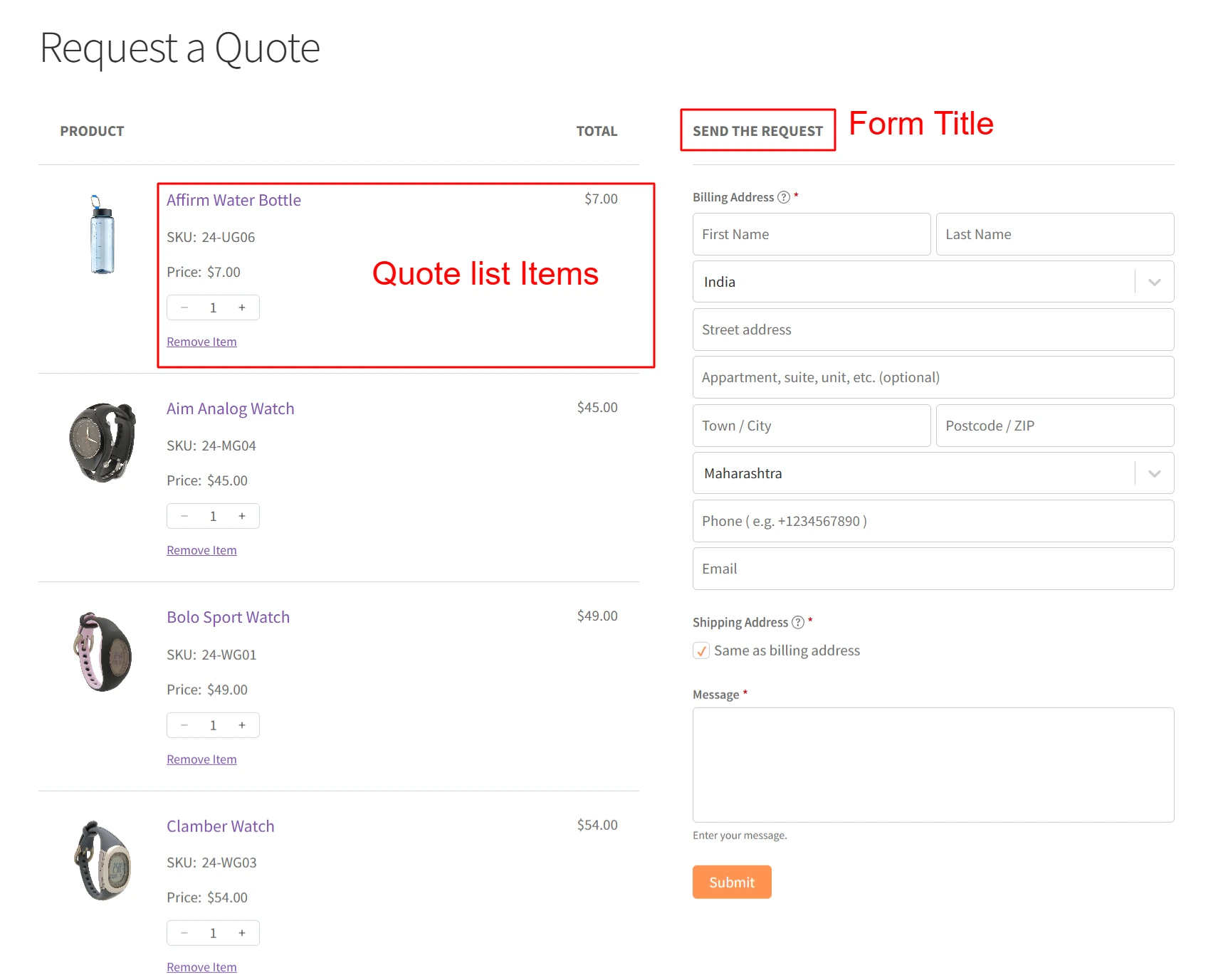
Set the heading shown above the quote request form.Example: Send the request.
Choose what information is shown in the quote list.
You can enable or disable:
Product thumbnail
Product price
Product SKU
Quantity
Single product total amount
Total amount of all products
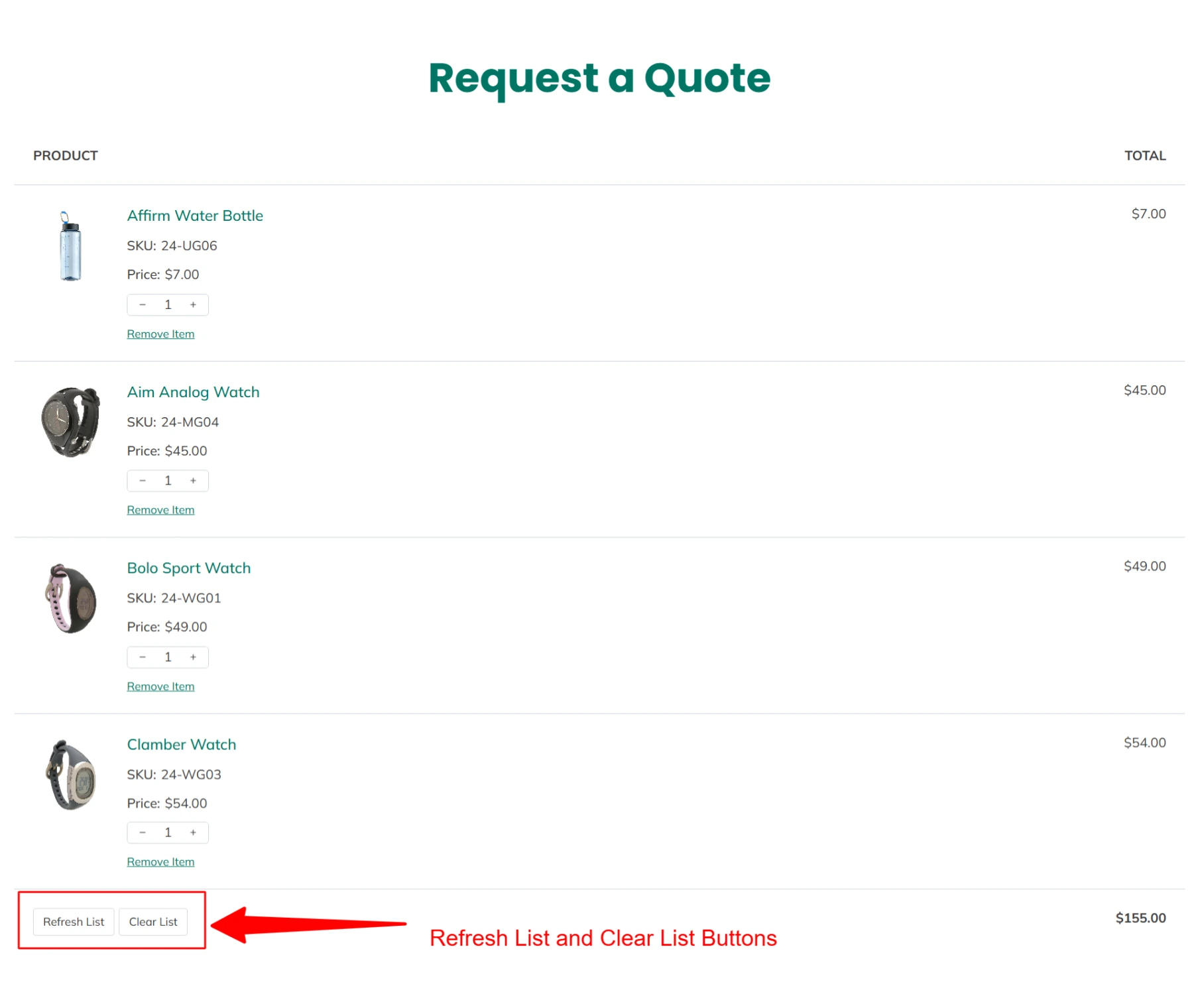
Shows a button to refresh the quote list.Useful when quantities or products change.
Change the text shown on the refresh button.Example: Refresh List.
Shows a button to remove all products from the quote list.
Set the text for the clear list button.Example: Clear List.
Choose what happens after the user submits the quote request.
Show simple text message – Displays a success message.
Redirect to custom thank you page – Sends the user to another page.
Redirect to Quote URL – Redirects to a specific quote page.
Enter the message shown after successful submission.This message appears if the text message option is selected above.
Save the settings after making changes.Your Request a Quote page will update instantly.
What are your feelings