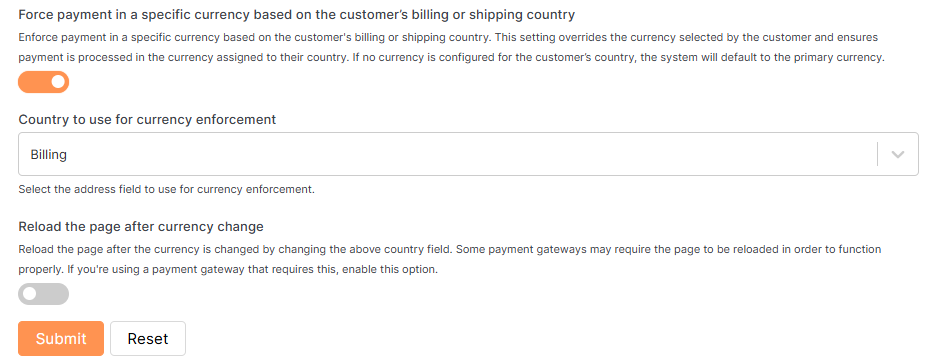
1. Enable Different Currency for Checkout
Enable this option to allow customers to complete checkout in a different currency than the one they used while browsing or adding products to their cart.
- This feature offers flexibility by allowing you to:
- Control which currencies are allowed at checkout
- Configure compatible payment gateways for each checkout currency
- Continue displaying product prices in multiple currencies while browsing
- Once enabled, the Checkout Currency Table appears with the following columns:
- Status – Toggle ON/OFF for each currency to enable or disable it at checkout.
- Currency – Displays the name of each currency available for checkout.
- Payment Methods – Allows you to select which payment gateways will be available for each active currency.
- This feature offers flexibility by allowing you to:
2. Display a Notice for Currency Enforcement
Enable this option to display a message on the checkout page when the selected browsing currency differs from the one used at checkout.
- Currency enforcement may occur in the following cases:
- The selected currency is disabled for checkout.
- A specific currency is enforced based on the customer’s billing or shipping country.
- You can customize the notice message using these placeholders:
- %currency-selected% – shows the currency originally selected by the customer
- %checkout-currency% – shows the currency used at checkout
- Currency enforcement may occur in the following cases:

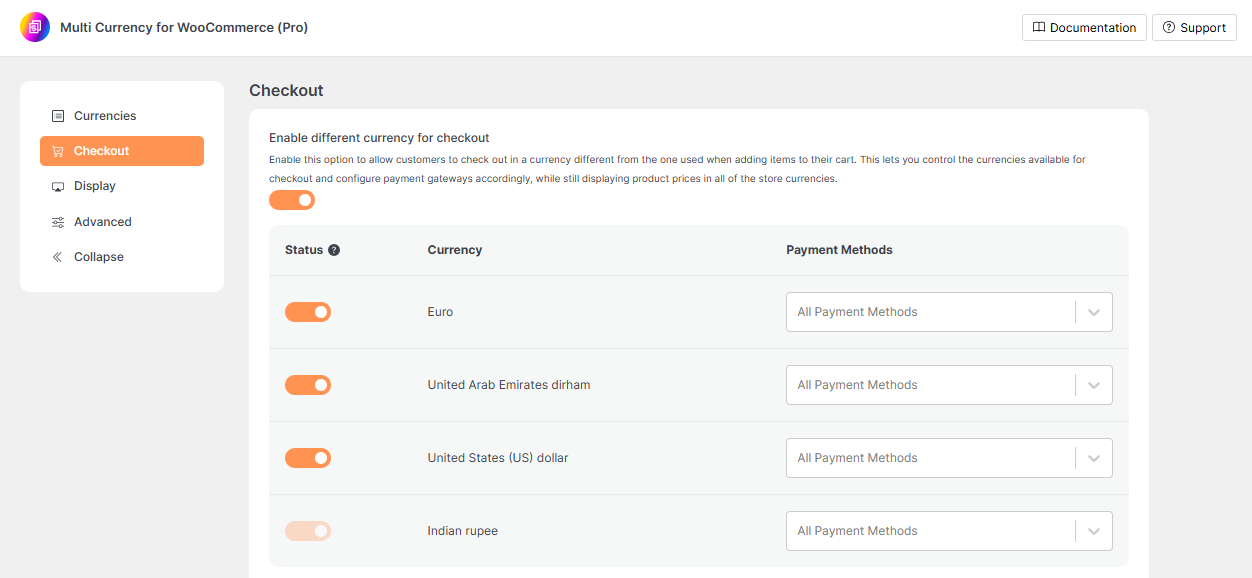
3. Force Payment in a Specific Currency Based on Customer’s Country (Pro Feature)
Enable this feature to automatically enforce payment in a specific currency based on the customer’s billing or shipping country.
This overrides the currency selected by the customer, ensuring that checkout occurs in the currency assigned to their country.
If no specific currency is assigned to the country, the store’s default currency will be used.
If no specific currency is assigned to the country, the store’s default currency will be used.
Once enabled, two additional settings will appear:
- Country to Use for Currency EnforcementSelect the customer location to use for determining the enforced currency:
- Billing Country: Use the customer’s billing address to determine the checkout currency. Ideal when taxes, invoicing, or compliance depend on billing location.
- Shipping Country:Use the delivery destination to determine the currency. Useful for international stores setting pricing based on destination country.Tip: Choose the option that best fits your pricing strategy, tax rules, or payment gateway requirements.
- Reload the Page After Currency ChangeEnable this option to automatically reload the checkout page after the currency is changed based on the customer’s country.This helps ensure:
- Proper loading of payment gateways
- Accurate recalculation of totals
- Correct display of currency across all checkout components
- This is particularly useful when using gateways that do not support dynamic currency changes without a page reload.