This page shows how to install the free plugin and the Pro plugin, and where to find the settings.
Plugin Free and Pro
Time needed About 5 minutes
Install the free plugin
From your WordPress dashboard (recommended)
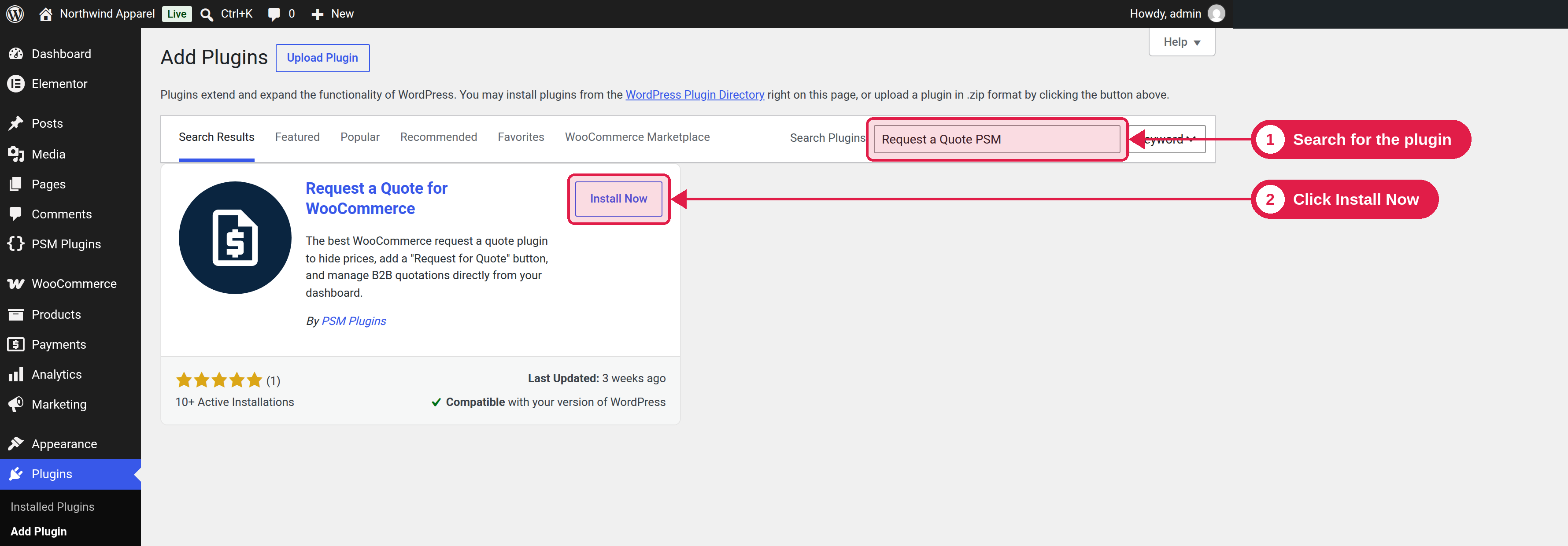
Go to Plugins → Add New.
Search for Request a Quote for WooCommerce.
Click Install Now, then Activate.
By uploading the zip file
Download psm-request-a-quote.zip.
Go to Plugins → Add New → Upload Plugin.
Choose the zip file, click Install Now, then Activate Plugin.
Install the Pro plugin
The Pro plugin is a separate plugin and it includes all free features. You upload it in the same way (Plugins → Add New → Upload Plugin), and then activate your license. See Activate your license.
Moving from Free to Pro
When the Pro plugin is active, the free plugin does not load. We suggest you deactivate and delete the free plugin after Pro is working. Your settings, form fields and quotes are kept.
What the plugin sets up for you
When you activate the plugin for the first time, it creates a page called Request a Quote with the shortcode [psmraq]. This is the page where customers fill in the request form. If you already have a page with the address request-a-quote, the plugin uses that page instead.
You can choose another page later. See Page settings.
Find the settings
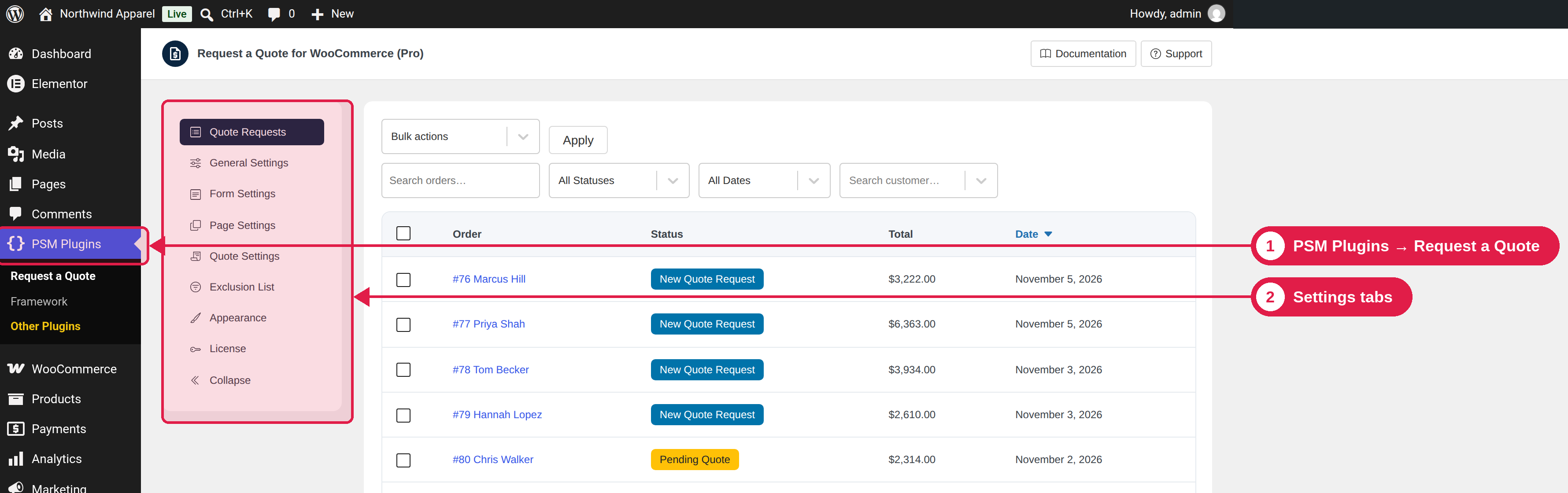
Go to PSM Plugins → Request a Quote. The settings page has these tabs:
Tab
What you do there
Document
Quote Requests
See all quote requests, search and filter them, and run bulk actions.