You can add the currency switcher to your pages with the WordPress block editor or with Elementor. Both work the same way as the shortcode, and you do not need to write any code.
Plugin Free and Pro
Block name PSM Multi Currency Switcher
Elementor widget PSM Multi Currency Switcher
WordPress block editor
Edit a page, post or template in the WordPress editor.
Click the + (Add block) button.
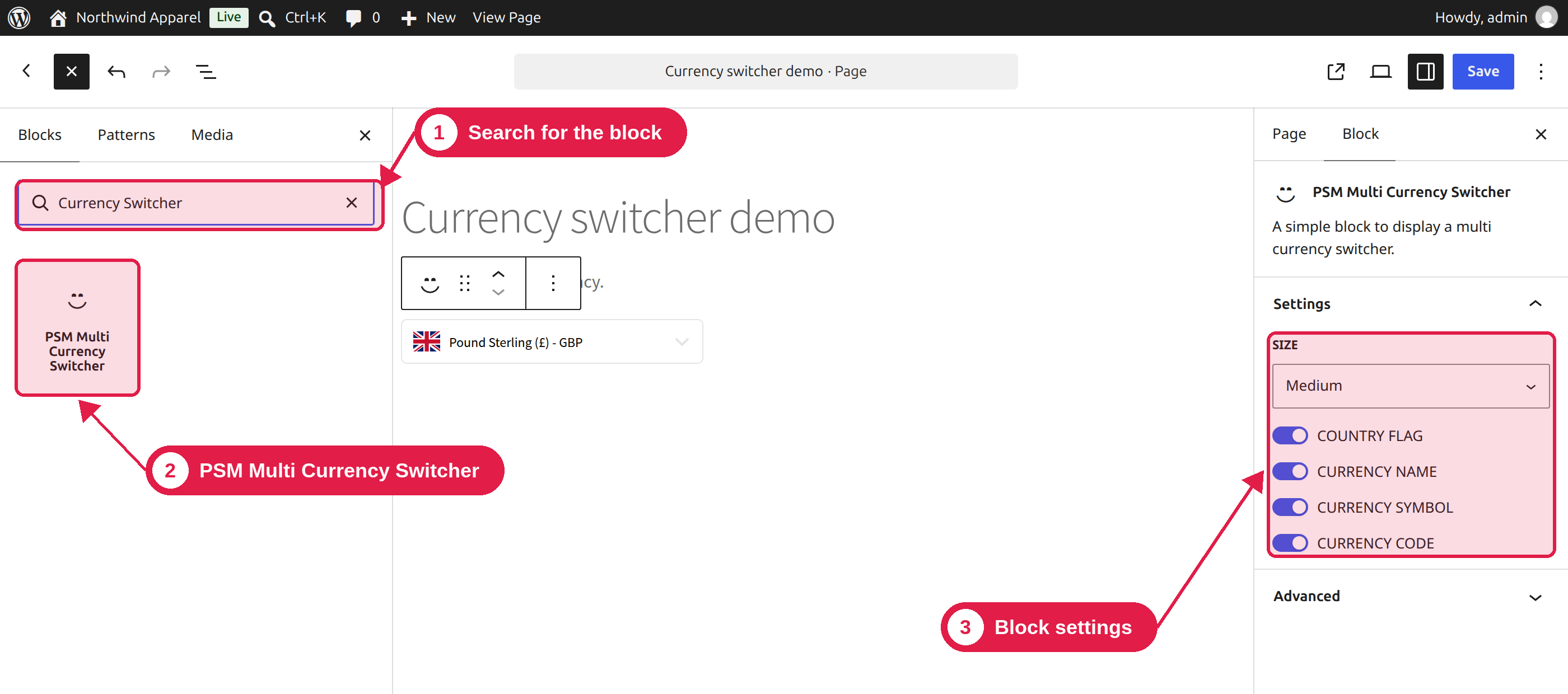
Search for PSM Multi Currency Switcher. It is in the Widgets group.
Click the block to add it.
With the block selected, use the settings in the right sidebar to choose the size, and to show or hide the flag, name, symbol and code.
Click Update or Publish.
By default, the block uses the medium size and shows the flag, name, symbol and code.
Use the block in your header
If your theme is a block (full site editing) theme, open Appearance → Editor, edit your header and add the block there. Then the switcher appears on every page.
Elementor
Edit your page with Elementor.
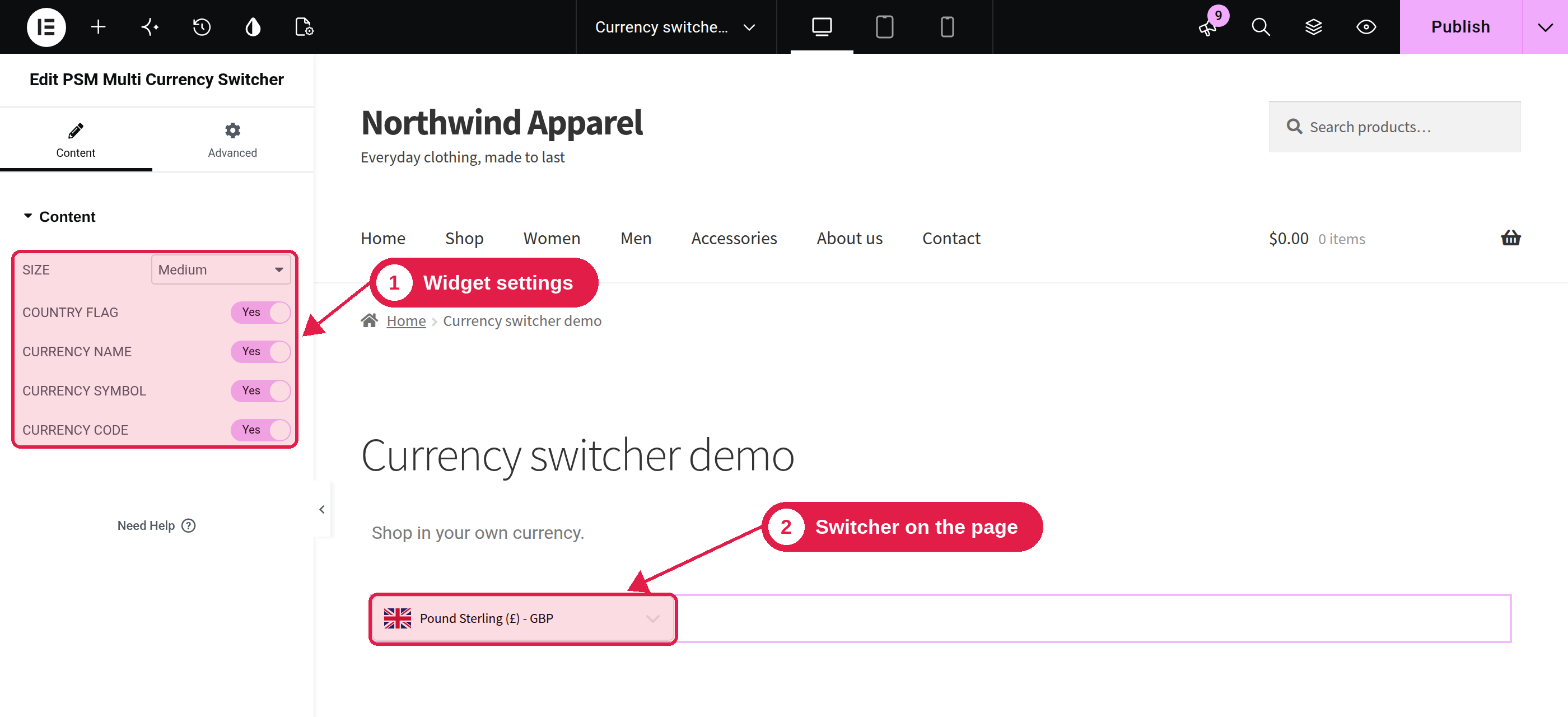
In the widget panel, search for PSM Multi Currency Switcher. It is also in the WooCommerce group.
Drag the widget to your page.
In the Content settings, choose the Size and turn Country Flag, Currency Name, Currency Symbol and Currency Code on or off.
Click Update.
By default, all four options are on.
Good to know
The block and the widget have their own settings. They do not use the settings from the Display tab.
You can add the switcher more than once on the same page.
The switcher only shows currencies that are turned on in the Currencies tab.