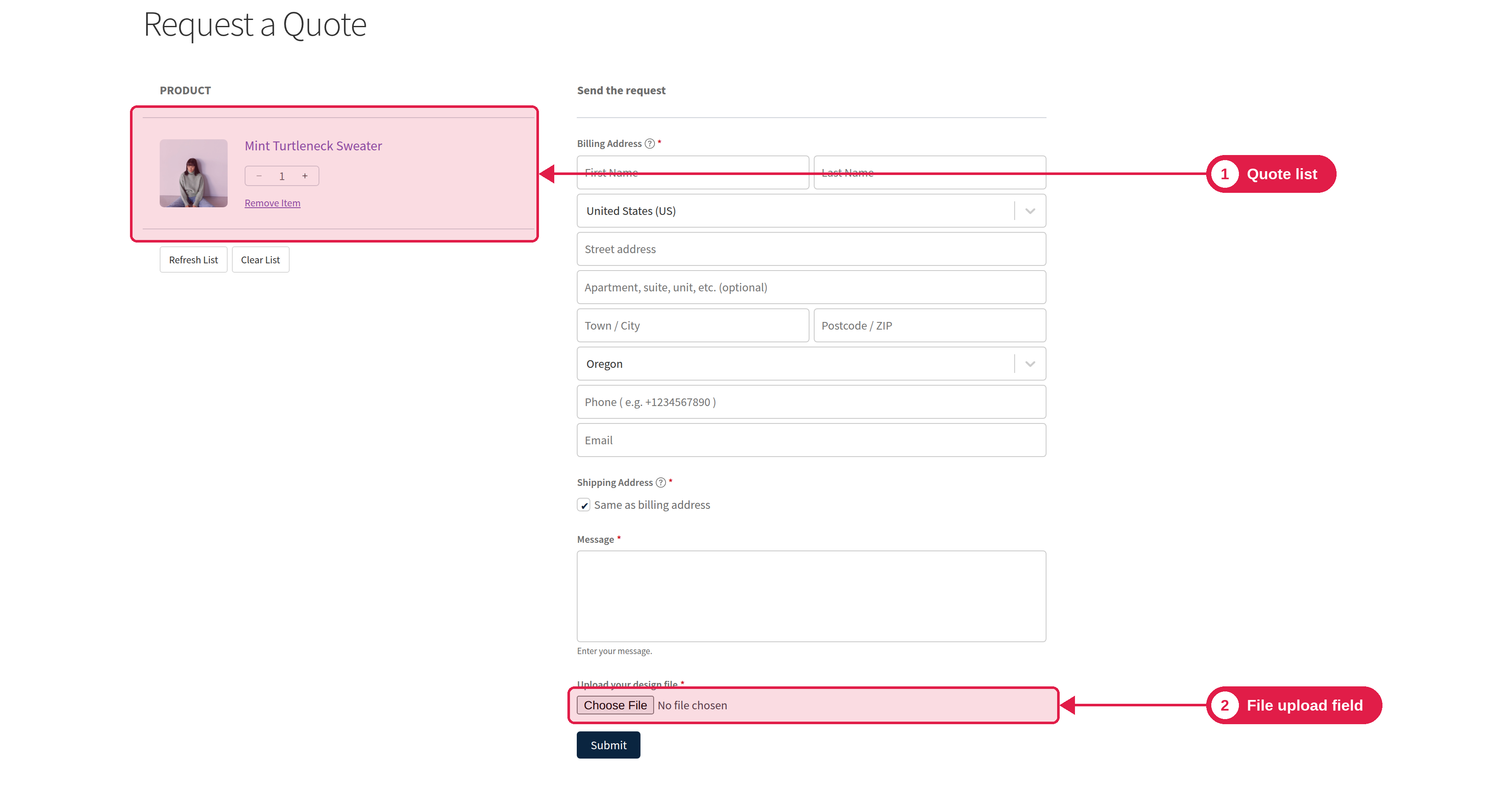
The File Upload field lets customers send files with their request, such as a drawing, a list or a photo. You control the file types and size.
Plugin Pro only
Where PSM Plugins → Request a Quote → Form Settings
Add a File Upload field
Go to Form Settings and click Add new field.
Choose the type File Upload.
Set a label and a field name.
Set Allowed extensions, Max file size (MB) and, if needed, Multiple file uploads.
Save the field.
Settings
Setting
What it does
Allowed extensions
The file types customers can upload. Start each with a dot and separate with commas, for example .jpg, .png, .pdf.
Max file size (MB)
The biggest size of one file, in megabytes.
Multiple file uploads
Allows more than one file in the same field.
Allow only the file types you need
Do not allow file types that can run code on your server. Keep the list short, for example images and PDF files.
Where files are stored and who can open them
Uploaded files are saved on your server. You open them from the Quote Request box on the order page. The file link includes a secret code of the quote, so only people with the link, such as you and the customer who sent it, can open the file.