Follow this guide to start receiving quote requests in about 15 minutes. Each step links to a detailed document.
Plugin Free and Pro
Time needed About 15 minutes
Step 1: Check your products
Each product that should show the Add to Quote button needs a price in WooCommerce. The price can stay hidden from customers (see Step 3). Products with no price do not show the button.
Step 2: Check the Request a Quote page
Go to PSM Plugins → Request a Quote → Page Settings and make sure the “Request a Quote” page is set. The plugin creates this page for you. See Page settings.
Step 3: Choose how products are sold
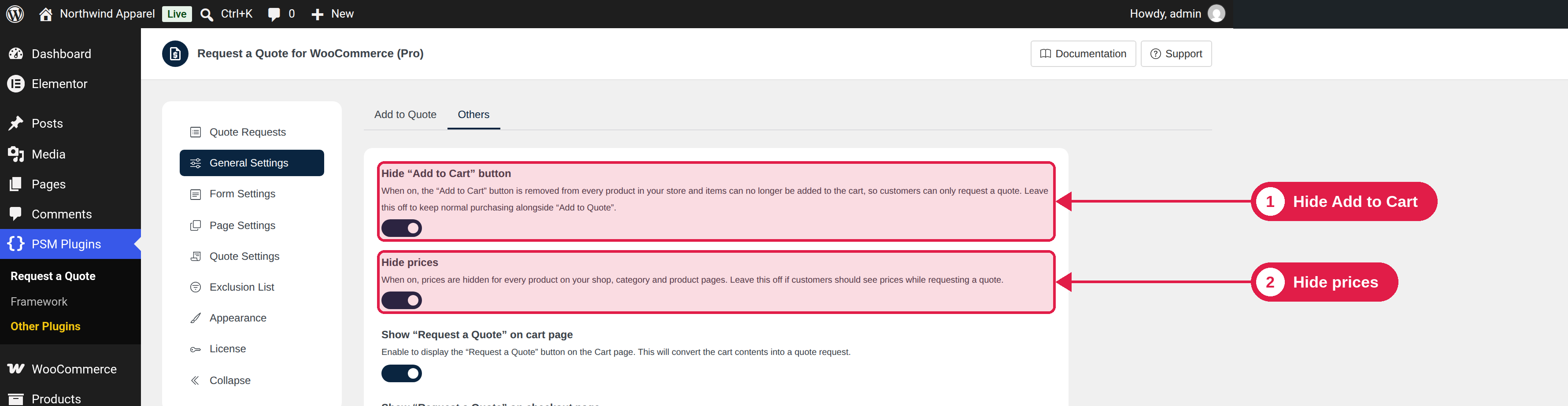
Open General Settings. If customers should only ask for quotes, turn on Hide prices and Hide Add to Cart button. If you want both normal buying and quotes, leave them off. See Hide prices and Add to Cart.
Step 4: Set up the form
Open Form Settings. Check the Billing Address, Shipping Address and Message fields. Check the phone field in particular, because by default it needs a number that starts with +. See Form fields.
Step 5: Turn on spam protection
In General Settings, choose a spam protection service. See Spam protection.
Step 6: Check your emails
Go to WooCommerce → Settings → Emails and open each [PSMRAQ] email. Check the recipients and the text. See Email overview.
Step 7: Send yourself a test quote
Open your shop in a private browser window and click Add to Quote on a product.
Click Browse Quote List and send the request.
Open the quote in WooCommerce → Orders, set an expiry date and click Send Quote. See Edit and send a quote.